
A collection of instructional documents for employees.
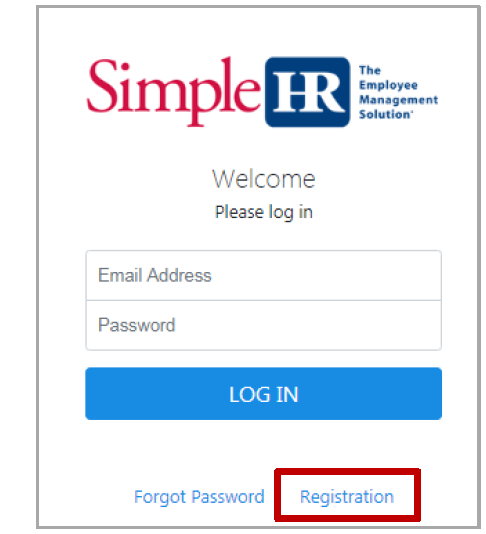 Visit SimpleHR.com and click Login
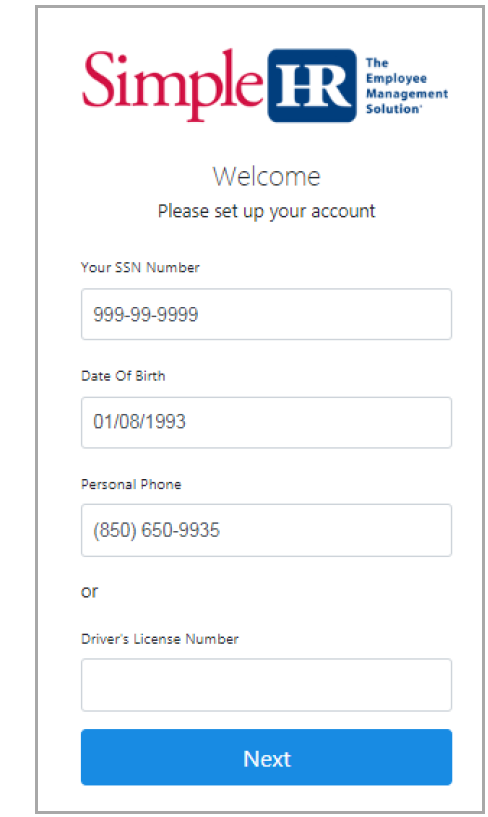 Enter your Social Security Number and Birthdate along with either the phone number or driver's license that we have on file
for you.
Enter your Social Security Number and Birthdate along with either the phone number or driver's license that we have on file
for you.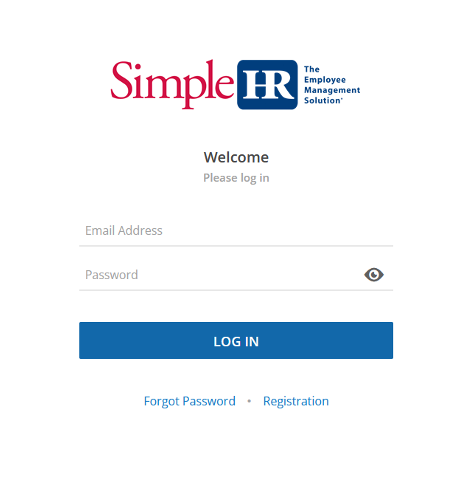 First Time Users - To register for your account, select the Registration link on the Employee Login screen or click the link in the registration email that was sent to you by the site.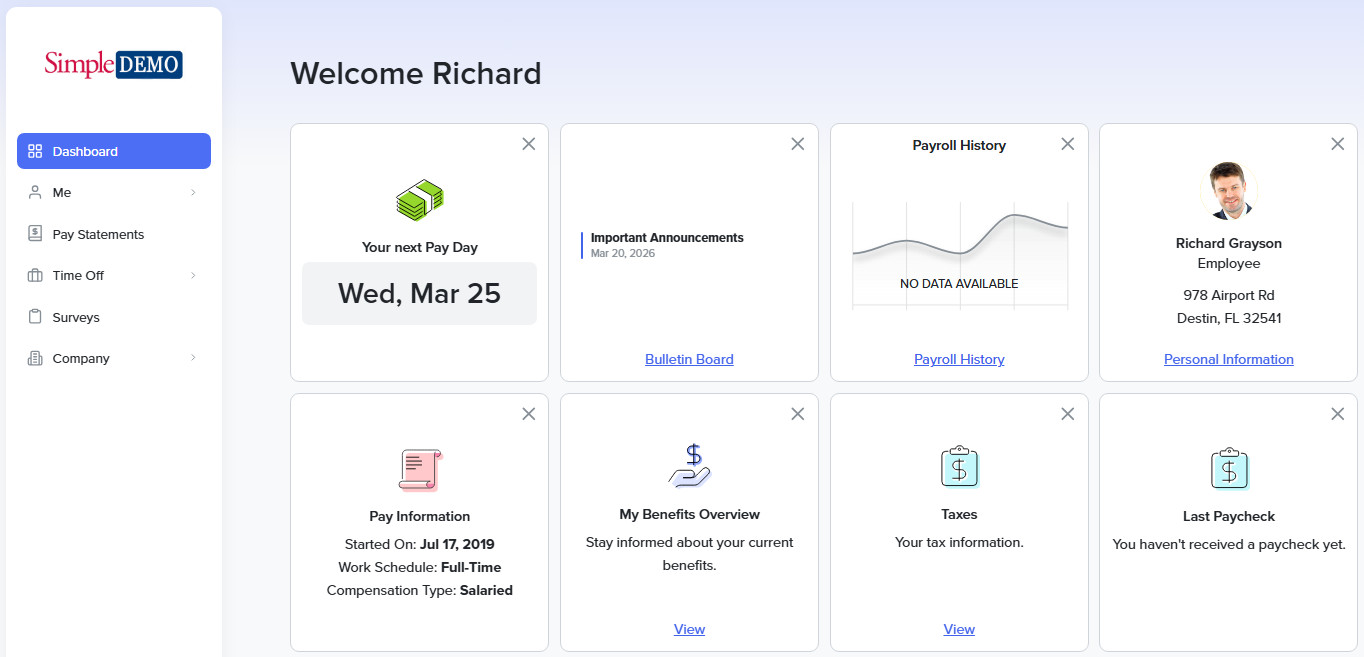
Answers to some of the most frequently asked questions.



Use this online form if you need more help with SimpleHR Pro
SimpleHR is a Professional Employer Organization (PEO) headquartered in Destin, FL, providing cost-effective human resource outsourcing while managing employee risks for client businesses for over 23 years. PEO license number EL374
Stay Connected

36474 Emerald Coast Parkway, Building B
Destin, Florida 32541
Toll Free: (888) 207-6703
Destin: (850) 650-9935
Pensacola: (850) 542-0566
Panama City: (850) 588-0926
Fax: (850) 650-9936
24-Hour Injury Line: (850) 974-2406









© 2003
SimpleHR ALL Rights Reserved.
Privacy Policy & Terms
SMS Privacy Policy
Messaging Terms & Conditions